

Help & Documentation
Step-by-step instructions for extracting archives, handling passwords, previewing files, and configuring external tools.
Quick Start
- Open DecompressX.
- Add files or folders that contain archives.
- Choose an output folder.
- Click Expand Archives to discover archive files.
- Click Run Extraction.
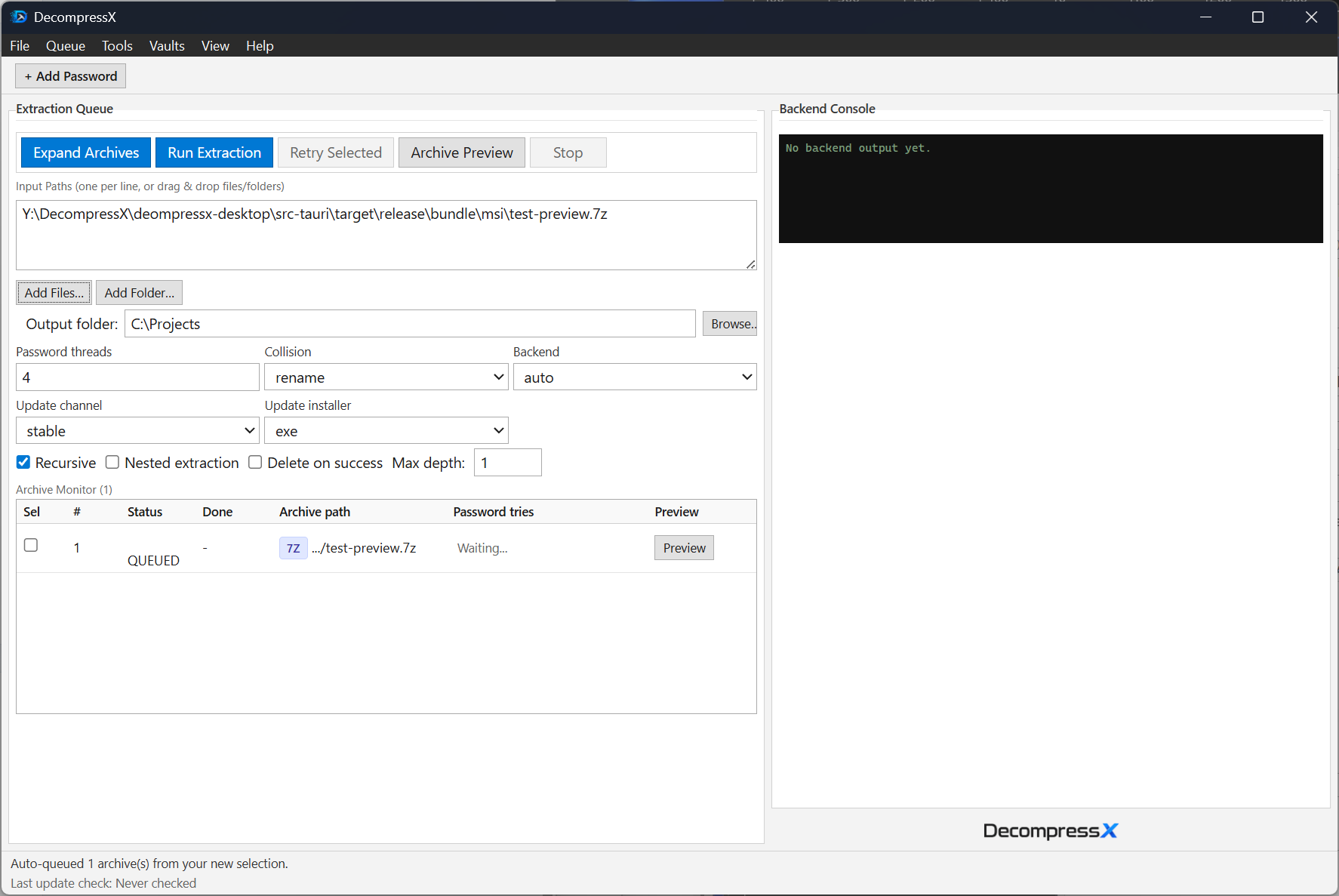
Use Case 1: Batch Extract Many Archives
Best for folders that contain a large number of ZIP, RAR, and 7Z files.
- Add one or more source folders.
- Enable recursive discovery if archives are in subfolders.
- Pick your destination folder.
- Click Expand Archives, then Run Extraction.
- Review the recent runs panel for results.
Tip: Keep a password list in the vault so encrypted archives can be tried automatically.
Use Case 2: Preview a Password-Protected Archive
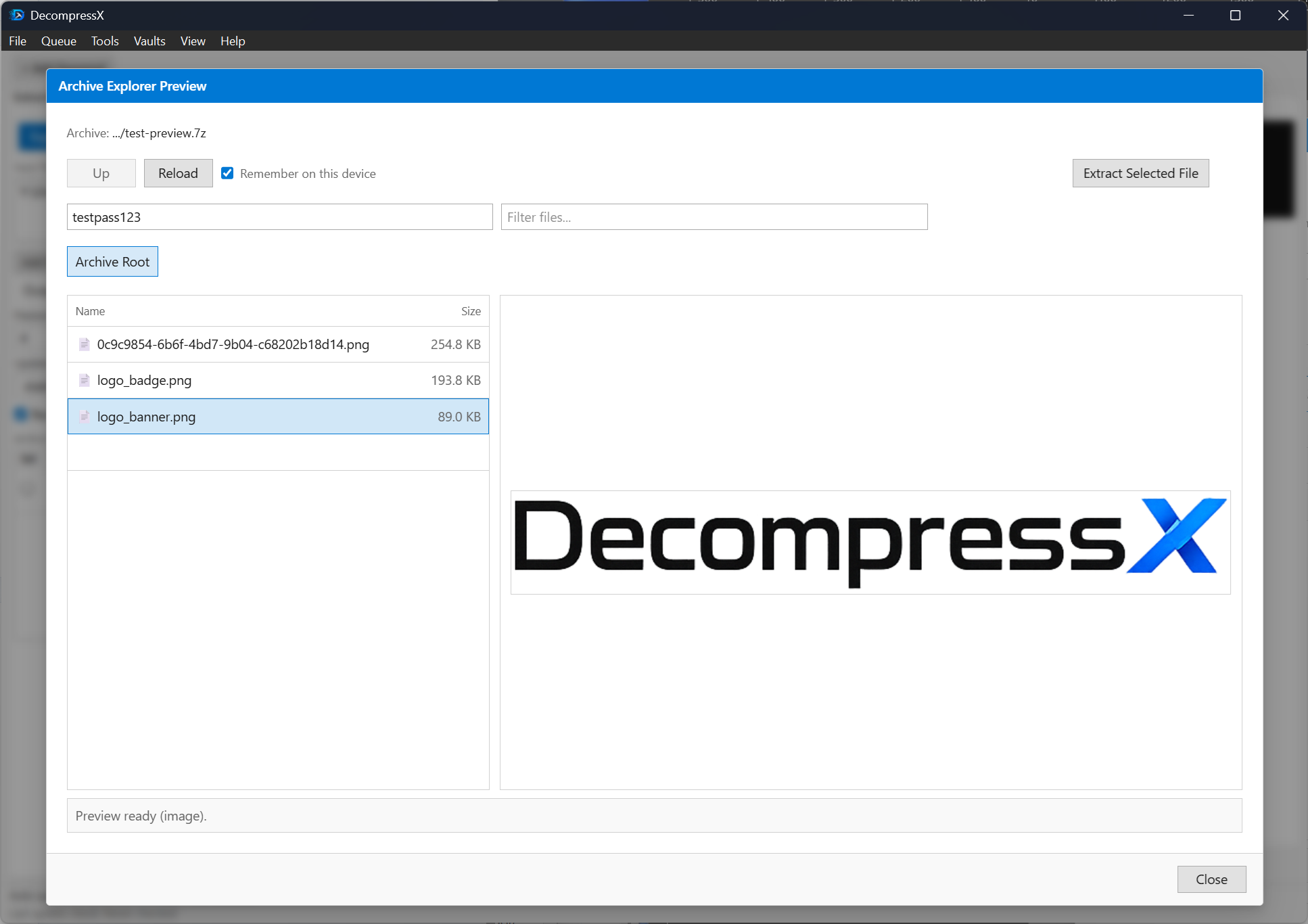
- Select an archive in the queue and open Archive Preview.
- Enter the password in the preview password field.
- Click Reload (or press Enter in the password box).
- Browse folders/files in the left pane and select an item to preview.
✓ Expected status: entries load and preview becomes available.
⚠ If entries do not load, verify password and click Reload again.
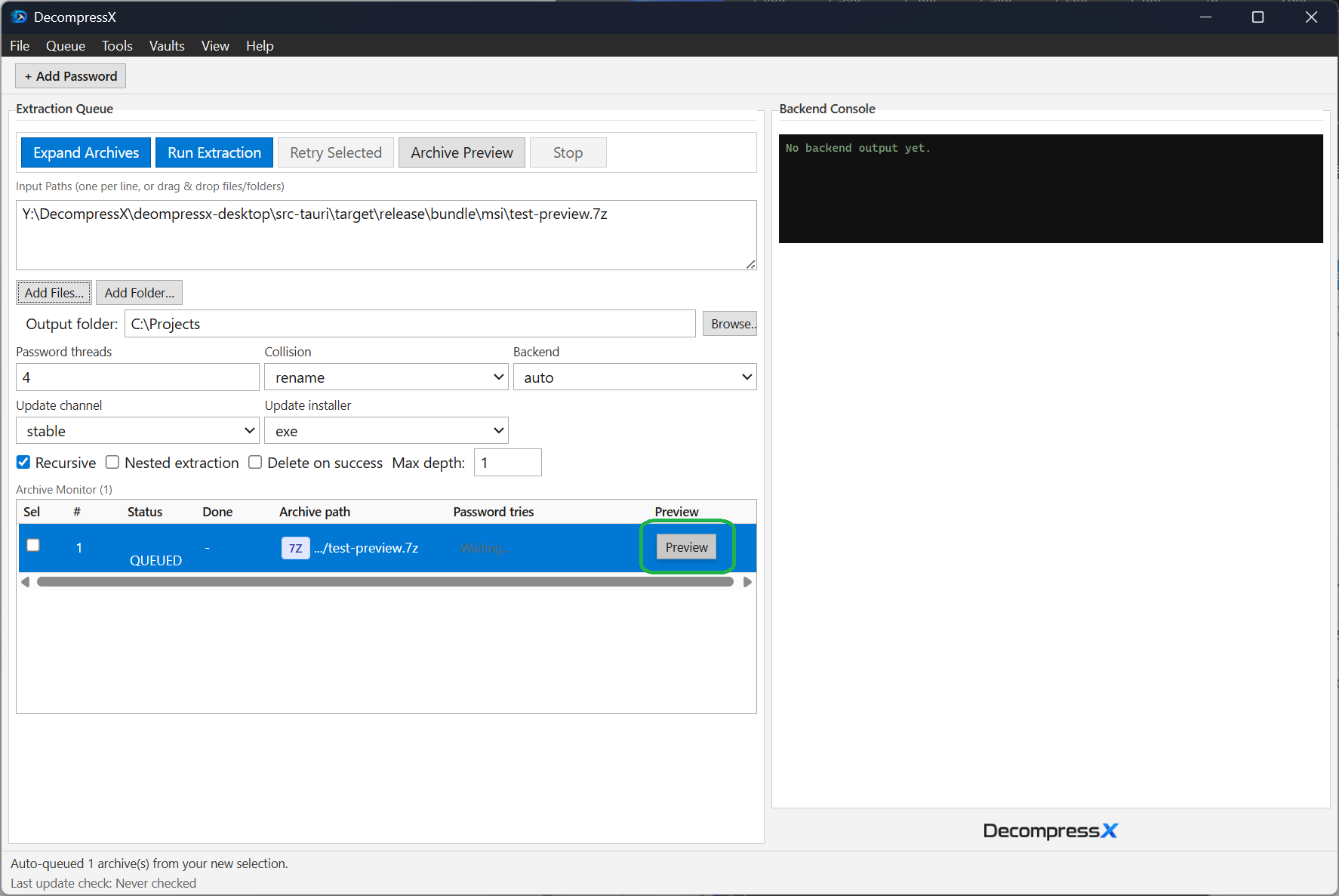
Use Case 3: Extract a Single File from Preview
- Open Archive Preview for your archive.
- Select a file entry (not a folder).
- Click Extract Selected File.
- Choose destination folder if prompted.
- Confirm extracted file path in the preview status message.
Use Case 4: Configure External Tools
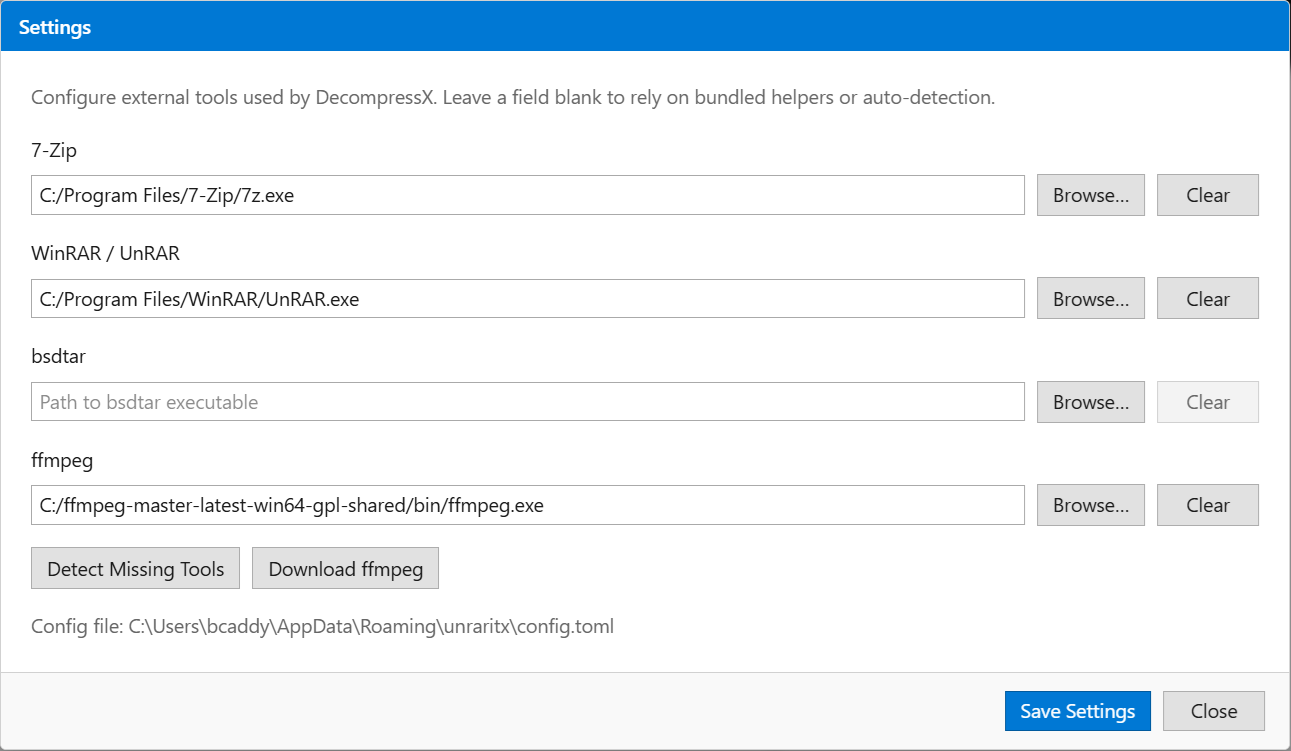
Configure 7-Zip, UnRAR, bsdtar, and ffmpeg for optimal performance.
- Open Tools > Settings.
- Set or browse executable paths for each tool.
- Save settings and retry preview or extraction.
When to set tool paths manually
- Tool is installed in a non-standard location.
- You want to force a specific 7-Zip or ffmpeg version.
- Auto-detection cannot find a required executable.
Recommended checks
- Path points to an executable file.
- No typo in folder name or extension.
- Restart app after changing paths, if needed.
Troubleshooting
Preview shows no entries
- Confirm archive password and click Reload.
- Check that the archive is valid by opening it in 7-Zip directly.
- Verify 7-Zip path in Settings.
Video preview unavailable
- Set ffmpeg path in Settings.
- Use Open in VLC for unsupported inline formats.
Extraction fails
- Check destination folder write permissions.
- Try a different backend (7-Zip, UnRAR, bsdtar).
- Retry selected archives only to isolate failures.